An invoice tracker is a list of every invoice you send, with its amount, due date, payments and status. To track invoices, add each one the day you send it, record payments as they arrive, and review overdue balances every week. The free template below calculates balances, status and aging for you in Excel, Google Sheets or Numbers.
Download the free invoice tracker (.xlsx). It has formula rows for 200 invoices, a Summary sheet with an aging table and a DSO calculator, and a How to use sheet. There's no sign-up.
Key takeaways
- Type seven things per invoice: number, client, issue date, due date, amount, amount paid and paid date. Formulas work out the rest.
- Age invoices from the due date: current, 1–30, 31–60, 61–90 and 90+ days past due. The older the bucket, the harder the money is to collect.
- DSO = accounts receivable ÷ credit sales × days in the period. A DSO of 40 on net 30 terms means clients pay about 10 days late on average.
- Fifteen minutes a week is enough: record payments, filter for overdue invoices and follow up on the oldest first.
Why tracking invoices matters
An invoice is only a promise until the money lands. A tracker helps in three ways:
- Cash flow. Your bank shows what has arrived. A tracker shows what's still due and when, so you can plan bills.
- Follow-ups. You can only chase what you can see. A tracker lists every overdue invoice and how late it is.
- Taxes. Under the cash method, income generally counts in the year you receive it, so payment dates matter. Under an accrual method, it generally counts when you earn it. In the UK, the cash basis is now the standard for sole traders. Either way, your accountant gets a clean list of what you billed and collected.
Keep the records behind it: the IRS's general rule is three years, longer in some cases, and HMRC requires the self-employed to keep them at least five years after the January 31 submission deadline. Rules vary, so check with your tax authority or an accountant.
What to include in an invoice tracking spreadsheet
Keep one row per invoice and one column per fact. The free template uses these columns:
| Column | What goes in it | Why it matters |
|---|---|---|
| Invoice # | The number on the invoice | Clients quote it when they pay |
| Client | Who you billed | Shows which clients pay late every time |
| Issue date | The invoice date | Starts the clock on your payment terms |
| Due date | Issue date plus your terms | Status, days overdue and aging all run from it |
| Amount | The invoice total, including tax | The full amount owed |
| Paid | Total received so far | Handles deposits and part payments in one row |
| Balance (calculated) | Amount minus paid | What you still need to collect |
| Paid date | When the final payment arrived | Cash-basis tax follows payment dates |
| Status (calculated) | Paid, Unpaid or Overdue | Lets you filter to what needs action |
| Days overdue (calculated) | Today minus the due date, for overdue invoices | Tells you how firm to be |
| Aging (calculated) | Current, 1-30, 31-60, 61-90, 90+ or Paid | Feeds the aging report |
Turn payment terms into a real date: an invoice dated October 1 on net 30 terms is due October 31.
The calculated columns use short formulas (row 5 shown):
- Balance:
=E5-F5 - Status:
=IF(G5<=0,"Paid",IF(TODAY()>D5,"Overdue","Unpaid")) - Days overdue:
=IF(I5="Overdue",TODAY()-D5,"")
Aging nests the same test: Current until the due date, then 1-30, 31-60, 61-90 or 90+ days past it. The template wraps Balance, Status and Aging in IF(A5="","",…) so empty rows stay blank. Add extra columns, such as notes, to the right of Aging so the column letters in these instructions still match. For what the invoice itself should show, see the complete guide to professional invoicing.
Invoice statuses: unpaid, overdue, paid and the rest
Labels vary, but most invoices move through these stages:
| Status | What it means | What to do |
|---|---|---|
| Draft | Created, not sent | Send it before you track it |
| Unpaid | Sent, not yet due | Nothing, or a courtesy reminder if it's large |
| Partially paid | Part of the balance received | Record it; chase the rest when due |
| Overdue | Due date passed, balance left | Follow up; the aging bucket tells you how firmly |
| Paid | Balance is zero | Record the date, send a receipt, keep the row |
| Void | Canceled after sending | Mark it void; don't delete or reuse the number |
The free tracker works out the core three with the status formula above. Part-paid invoices stay Unpaid or Overdue, showing the reduced balance. For what to record when money arrives, see how to mark an invoice as paid.
Track status without a spreadsheet. Invoicious tracks every invoice as paid, unpaid or overdue on iPhone and iPad, and saves your client details.
Get Invoicious freeAging buckets and how to read an aging report
An aging report groups unpaid invoices by how far past the due date they are and totals each group: current (not yet due), 1–30, 31–60, 61–90 and more than 90 days past due. Some software, such as QuickBooks Desktop, can age from the invoice date instead, so check which one a report uses.
Age matters because old debts go bad: accountants using the aging method apply higher loss rates to older buckets (OpenStax, Principles of Accounting).
Worked example: reading an aging report
Say you run a small design studio on net 30 terms. At the end of October, the Summary sheet's aging table shows these balances and counts. The share column and total row are added here:
| Aging bucket | Balance | Invoices | Share of total |
|---|---|---|---|
| Current | $6,600 | 5 | 55% |
| 1–30 days | $3,000 | 3 | 25% |
| 31–60 days | $1,440 | 1 | 12% |
| 61–90 days | $0 | 0 | 0% |
| 90+ days | $960 | 1 | 8% |
| Total outstanding | $12,000 | 10 | 100% |
- Current, $6,600: not due yet, so no action needed.
- 1–30 days, $3,000 across three invoices: this week's follow-ups. Email the newly late ones and call about any more than two weeks late.
- 31–60 days, $1,440: it should have had a final notice around day 30. If not, send one with a firm deadline.
- 90+ days, $960: decide between a payment plan, small claims court, a collections agency and a write-off.
In total, $5,400, or 45% of what you're owed, is past due. If that share climbs while sales stay flat, clients are paying more slowly.
How to calculate DSO (days sales outstanding)
Days sales outstanding estimates how many days, on average, it takes you to turn an invoice into cash:
DSO = (accounts receivable ÷ credit sales) × days in the period
- Accounts receivable is what clients still owe you: the Outstanding figure on the Summary sheet.
- Credit sales are what you invoiced in the period for later payment. Leave out sales paid on the spot.
- Days in the period is 30 for a month, 90 for a quarter or 365 for a year.
The OpenStax accounting textbook calls this the number of days' sales in receivables and uses average receivables over a 365-day year. The tracker uses today's balance, which reacts faster. Either works if you stick to one method.
Worked example: calculating DSO
The studio above has $12,000 outstanding and invoiced $27,000 in the 90 days to the end of October:
DSO = $12,000 ÷ $27,000 × 90 = 40 days
On net 30 terms, clients are taking about 10 days longer than agreed. Collecting the $3,000 in the 1–30 bucket would cut receivables to $9,000 and DSO to 30 days ($9,000 ÷ $27,000 × 90). In the tracker, enter 27,000 in B18 on the Summary sheet. B19 is already set to 90 days, and B20 pulls in the $12,000 outstanding, so B21 shows 40.0. Watch the trend: a falling DSO means you're getting paid faster.
How to set up the free invoice tracker in Excel, Google Sheets or Numbers
The template has three sheets: Tracker, Summary and How to use, a one-page version of these steps.
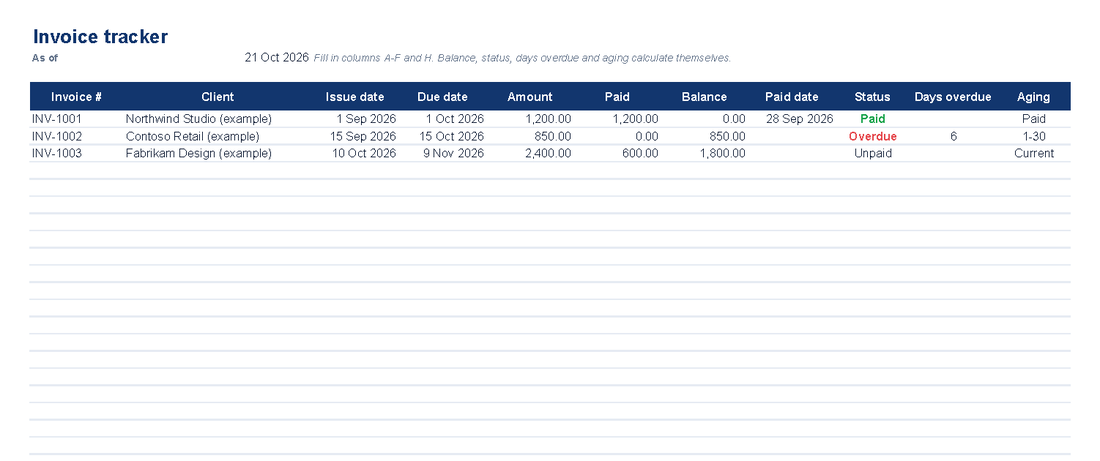
The Tracker sheet with three example invoices. Paid shows in green and Overdue in red.
- Download it and save a copy named for the year, such as invoices-2026.xlsx.
- Open it. In Excel, click Enable Editing if the file opens in Protected View. In Google Sheets, open a blank spreadsheet, choose File > Import, upload the file and pick Replace spreadsheet. In Numbers, choose File > Open on a Mac, or tap Browse in the document manager on iPhone or iPad.
- Clear the examples. Type over rows 5 to 7, or delete their entries in columns A–F and H. Leave columns G, I, J and K alone: they hold the formulas.
- Enter your open invoices. Start with everything not yet paid in full. Dates display like 1 Oct 2026, so a swapped day and month stands out.
- Record payments as they arrive. Keep the Paid column at the total received so far, and add the paid date once the balance is cleared.
- Filter. In Excel, use the arrows on the header row to filter the Status column to Overdue or Unpaid. Google Sheets and Numbers have their own filter tools.
- Read the Summary. It shows total invoiced, total paid, outstanding, the overdue balance and count, and the aging table. Enter credit sales and period length for DSO.
Status and aging use the TODAY function, so they update whenever the file recalculates. The As of date at the top shows which day they're based on. Headers stay frozen as you scroll, and the sheet prints landscape, one page wide, with headings repeated on each page. Past 200 invoices, insert rows above row 204 and copy a formula row into them so the Summary counts them (rows added below 204 aren't counted), or start a fresh copy each year.
Download the free invoice tracker (.xlsx). If you also make your invoices in a spreadsheet, pair it with this free Excel invoice template.
A 15-minute weekly invoice review
Pick a fixed slot, such as Friday morning, and work through this list:
- Record payments (5 minutes). Check your bank and payment accounts, then update the Paid column.
- Add missing invoices (2 minutes). Make sure every invoice you sent this week has a row.
- Filter for Overdue (1 minute). Then sort Days overdue from largest to smallest.
- Follow up (5 minutes). Email anything newly overdue, call about anything more than two weeks late, and send a final notice at 30 days. This guide to collecting overdue invoices has email templates for each step.
- Look a week ahead (1 minute). Filter for Unpaid and send a courtesy reminder for any large invoice due in the next seven days.
- Check the Summary (1 minute). Compare the overdue balance with last week's. Once a month, update your DSO.
Log any promised payment dates in a notes column for next week.
Common invoice tracking mistakes
- A blank or text due date. In the template, a blank due date shows the invoice as overdue in the 90+ bucket, and a date typed as text can leave it looking current however late it is.
- A paid date without the amount. Status follows the Paid column, so the invoice stays Unpaid or Overdue until the balance reaches zero.
- Typing over formulas. A status or balance typed by hand never updates again.
- Deleting paid invoices. You lose the history behind your annual totals, DSO and tax records. Filter them out instead.
- Updating only when you remember. A tracker three weeks out of date sends you chasing clients who have already paid.
- Mixing currencies. Dollars and euros in one column make every total meaningless, so keep one copy per currency.
Spreadsheet vs invoice tracking software vs accounting software
A spreadsheet works until keeping it current becomes a job of its own. Here's how three options for invoice management compare:
| Compare | Spreadsheet | Invoicing app | Accounting software |
|---|---|---|---|
| Best for | A few invoices a month | Freelancers invoicing on the go | Businesses that need full books |
| Creating invoices | Separate step, then re-typed | Built in, tracked from the start | Built in |
| Payment status | Formulas, as current as your last update | Paid, unpaid or overdue for each invoice | Built in, often matched to bank deposits |
| Aging and DSO | Calculated by the free template | Varies by app | Standard reports |
| Reminders | You send them | Varies by app | Often automated |
| Cost | Free in Google Sheets or Numbers | Often free to start | Usually a monthly subscription |
| Main drawback | Manual entry and breakable formulas | Lighter reporting | More setup and cost |
You've outgrown the spreadsheet when you type client details twice, payments go unrecorded for weeks, you need to invoice away from your desk, or several people edit the same file. If your accountant needs bank reconciliations or VAT returns, move to accounting software.
Invoicious sits in the middle column: an invoice generator for iPhone and iPad, free to download, with professional templates, saved client details, paid, unpaid and overdue tracking, and receipts for paid invoices. It doesn't send reminders or produce aging or DSO reports, so keep the spreadsheet if you need those numbers.